
Since I’ve joined Twitter and Stumble and completed my set of social media outlets (for now), I went ahead and updated my set of social media icons for the sidebar of the blog, including a homemade Instagram icon. For my own icons, I used Gimp, which is a photo editing tool, probably similar to Photoshop Elements, but it’s free, open source, and there’s lots of tutorials on the internets. However, this tutorial will teach you how to use Ribbet, an online tool whose premium features are free right now, since PicMonkey has started charging for some of their more advanced services. This means you can sign up to Ribbet, and make your own social media icons with no special software needed!
Please do not redistribute or sell these images.
1. First, you’ll need a set of icon silhouettes. I found transparent png images of social media icons at The Blog Designer Network, but since that set was missing the Instagram and Google + icons, I made my own for you to use. You can just right-click all of the images and save to your computer.
2. Go to Ribbet.com. Register for their premium services, since it’s free right now. I assume they will start charging just as PicMonkey has, but I don’t know when, and why not take advantage right now?

3. Once you’ve registered, start uploading your icon silhouettes. You’ll need to start with a blank white image, which you can just Save As here:

white blank image
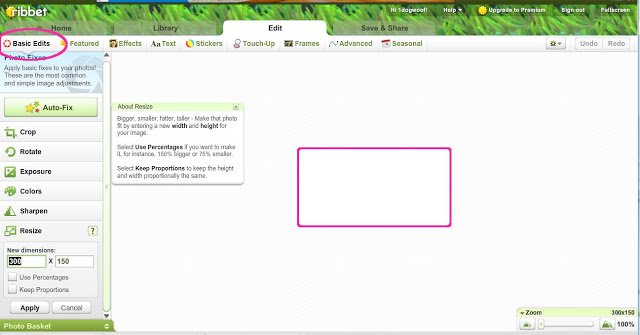
4. Pick the white image to edit. In ‘Basic Edits’ -> ‘Resize’, alter the image to your desired dimensions. Remember you can crop extra white space later if necessary.
5. Go to ‘Stickers’ -> ‘Geometric’, and choose the shape you want for your icons. I used circles for this example. Adjust the size and color of your shapes. Once you have one set up correctly, right click, choose ‘Duplicate Circle’ to generate the other bases for your icons.
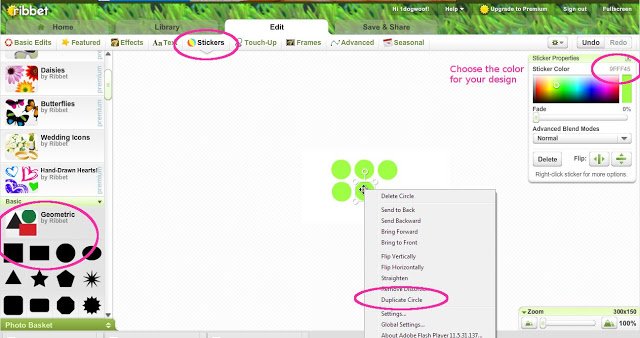
6. See that green ‘Photo Basket’ tab at the bottom left? Expand that tab and you’ll see the icon silhouettes you’ve previously uploaded. Or you have the option of uploading photos at this point. Drag the silhouette onto your shape. Change the size of the overlay to fit inside your icon base, and change the color to white (the color is up to you of course, I chose white).
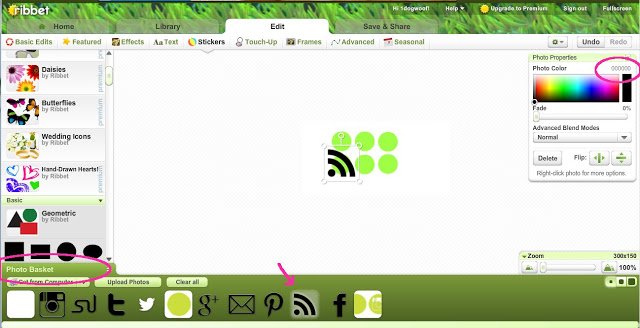
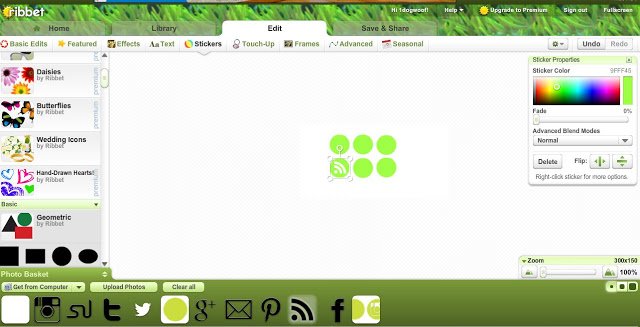
7. Here you can see the RSS icon shrunk down to size and in white. Continue adding the icon silhouettes as overlays to the other icon bases.
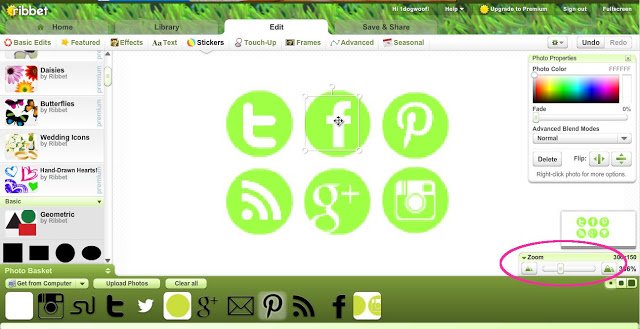
8. I choose to zoom into my image so I can better center my overlays. The zoom option is in the bottom right. You can also adjust where the overlay sits in the base. For example, some people place the facebook icon slightly off-center, and the G+ icon to cut off the bottom of the ‘g’.
9. You can mess around in here for ages, but when you’re done, click the ‘Save & Share’ tab at the top, choose a file name, and save as a PNG file.
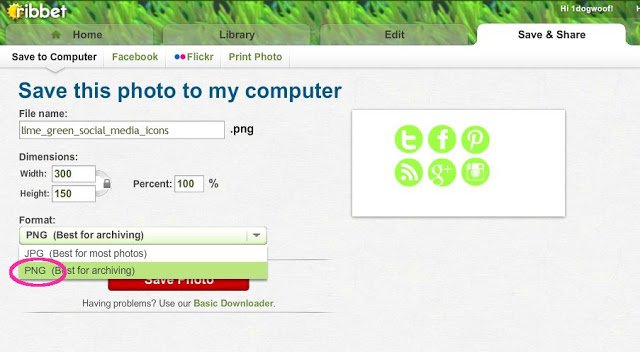
10. Now that you have your image, you’ll want to add an image map to it. This enables different areas of the image to be linked to different sites. Head over to this post to learn how to use Image Maps!
Notes: As I mentioned before, I used Gimp to create my base image because it allows me to create my base image down to the pixel, and I’m a crazy perfectionist like that. But obviously, you don’t need Gimp to create your own set of social media icons!

Great instructions! I love mapping, it’s so much cleaner, but it can be really confusing if you’re trying it for the first time. Thanks for sharing!!
Great tips! Thanks!
Thanks for sharing- You make it look so easy!
I can’t wait to have the time to sit down and do this! Thank you.
This comment has been removed by the author.
This is great, you do make it look easy! That image map thing is cool… will have to try! Thanks for sharing 🙂 ~Stephanie
Found you via Made by you Monday; I agree, you do make it look easy. I’ve got to find some try to give this a try!
Thanks for the easy instructions! I’ve been needing to update my icons and I’ll have to give this a try. Thanks for sharing!
Thanks for the easy instructions. Been wanting to give it a go but was a little intimidated now I think I can tackle it 🙂 We found you via Skip to my Lou – made by you Monday. We are now your latest followers via bloglovin
Thanks for the tutorial. I’m pinning this to share.
Thanks for sharing, I have seen the mapping before, but haven’t had time to really delve into it. Your instructions are just the reason for me to add it back onto my to do list.
Shaunna @ Tempting Thyme
Great tutorial! Pinning!
Great tutorial! This is a different take from the others I have seen. It’s the first time I’ve seen an image map app, so I’m definitely going to check it out. Thank you for sharing!
This is amazing- thank you for this tutorial! I am your newest follower!
Christi
http://the-not-so-perfect-momblog.blogspot.com/
seems so complicated! i just use photoshop and photobucket:) thanks for sharing
I found your post on pinterest today…I use Ribbet and have been looking for something to help me with my icons. Thank you so much! This was so easy to follow…in fact I blogged about it myself and featured your blog post on my blog…I hope thats ok? If not I will delete it. http://thingsinyou.blogspot.com/2013/01/social-media-icons-using-ribbet.html
Great tutorial!! I haven’t ever tried mapping but I think I might now.:)
Great post! I just pinned it so I can find it again when I’m ready to make these changes to the blog!
You are so talented! I love your blog!
Hugs,
Kelly from Smart School House
Facebook: http://www.facebook.com/SmartSchoolHouse
This is great, and just what I was looking for! The only problem (aside from BDN being down right now) is that your Instagram image isn’t a transparent png–it just saves as a jpg with a tiled background the way a transparent bg would look in Photoshop?
Thank you thank you! This was the best!
Hi this is a very helpful tutorial specifically for new bloggers like me. though I have a difficulty & hope you can help me solve them. I am not able to get icons like you have for pinterest (the curved P), instagram (camera) etc in same color. e.g. the Pinterest symbol (curved P) is present in white font with maroon background color. So from where can fetch these similar font & color symbols?
http://lovelaughliveme.wordpress.com/
Hi Khushbu, you can find transparent silhouettes for the other icons in the link I’ve shown under the first step. Looks like the BDN is renovating their site right now, but they should have the icons available again soon!
Hi Chiwei, Thanks for the tutorial. I’d love to have you share this at What to Do weekends Party. I love Ribbet. Thanks for that info alone but I think I could do the social media buttons now myself. BDN is down but I’m not ready right now to do them. I also Pinned this tutorial and even saved to my desktop. What other tutorials do you have here? Best wishes, Linda
http://www.craftsalamode.com/2013/01/sweet-and-wonderful-friends-its-time.html
Thank you SOOO much for this tutorial!!! And for the instagram image! You rock!
Great tutorial, thanks!
Since I’ve joined Twitter and Stumble and completed my set of social media outlets (for now), I went ahead and updated my set of social media icons for the sidebar of the blog. can you buy instagram followers
I have yet to do image mapping, but when I do, this is going to be my go-to guide. Pinning! Thanks for the tutorial, ChiWei!
These are cute! I like the bright fun colors! I like to use pops of color throughout my blog too. Simple, bright colors are so visually appealing. Thank you for sharing!
i really love your blog
thanks!!!
Thanks God. Now i know how to create social media icons for my accounts. Guess who will use it for a promotion?)Yes, now my content will spread like a wildfire with zengram.net with its boosting followers, schedigram and ribbet)